
BeatsOrbit User Manual
Everything in the BeatsOrbit studio, top to bottom. Use the menu to jump to a section, or download the PDF to read offline.
Getting started
BeatsOrbit is a beat maker that runs in your browser on tablets, phones and computers. Open the Studio, pick a style, then pick a starter beat or a blank project. The beat starts playing and you can change anything.
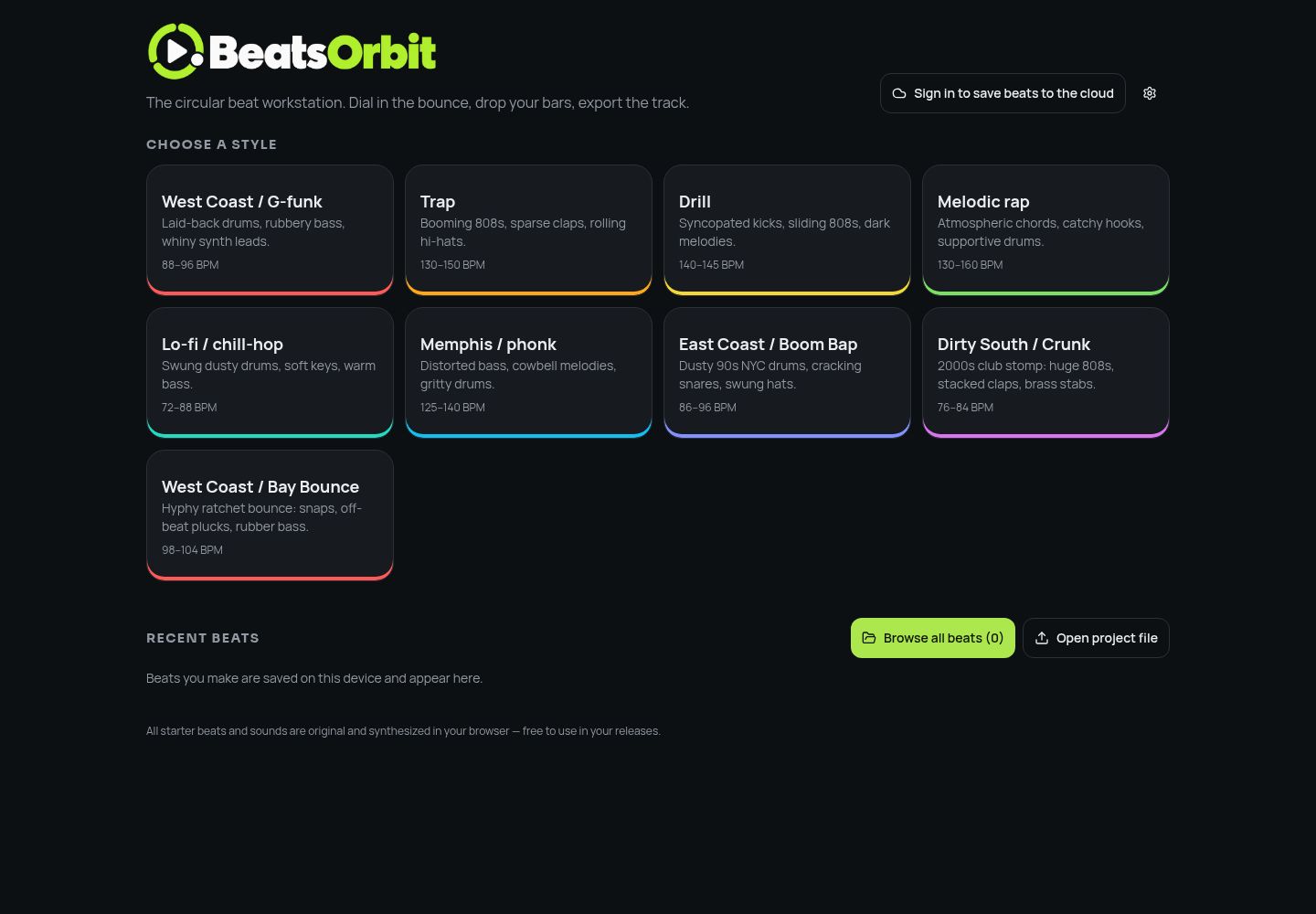
- Sign in to save every beat to your account automatically. Your beats show up on all your devices.
- Use headphones when recording vocals so the beat doesn't bleed into the microphone.
- Tap the BeatsOrbit name or the folder icon at the top left to get back to this page.
Starter beats
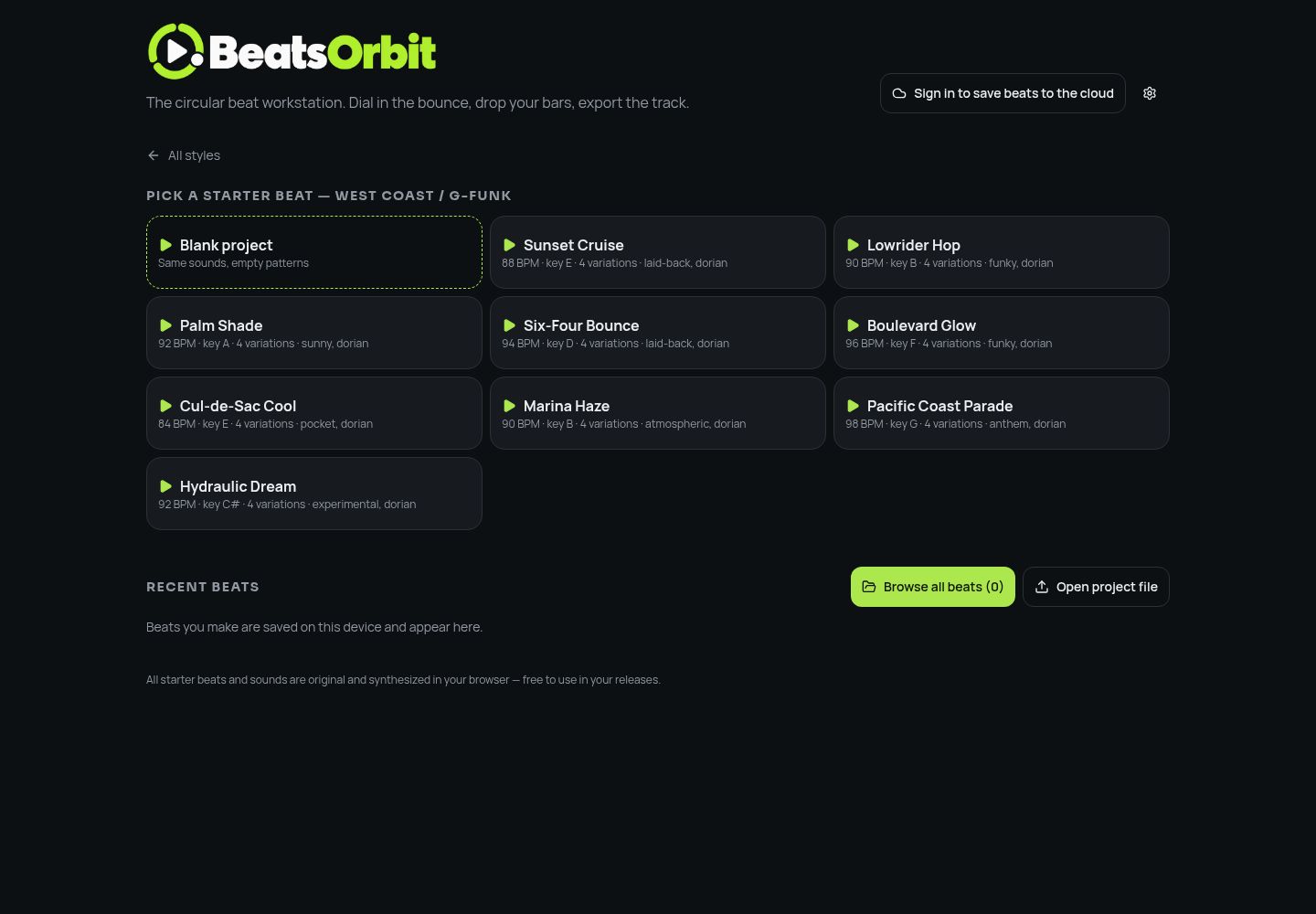
Every style has several full starter songs with their own tempo, key, sounds and arrangement. Blank project keeps the style's sounds but empties the patterns.
Interface tour
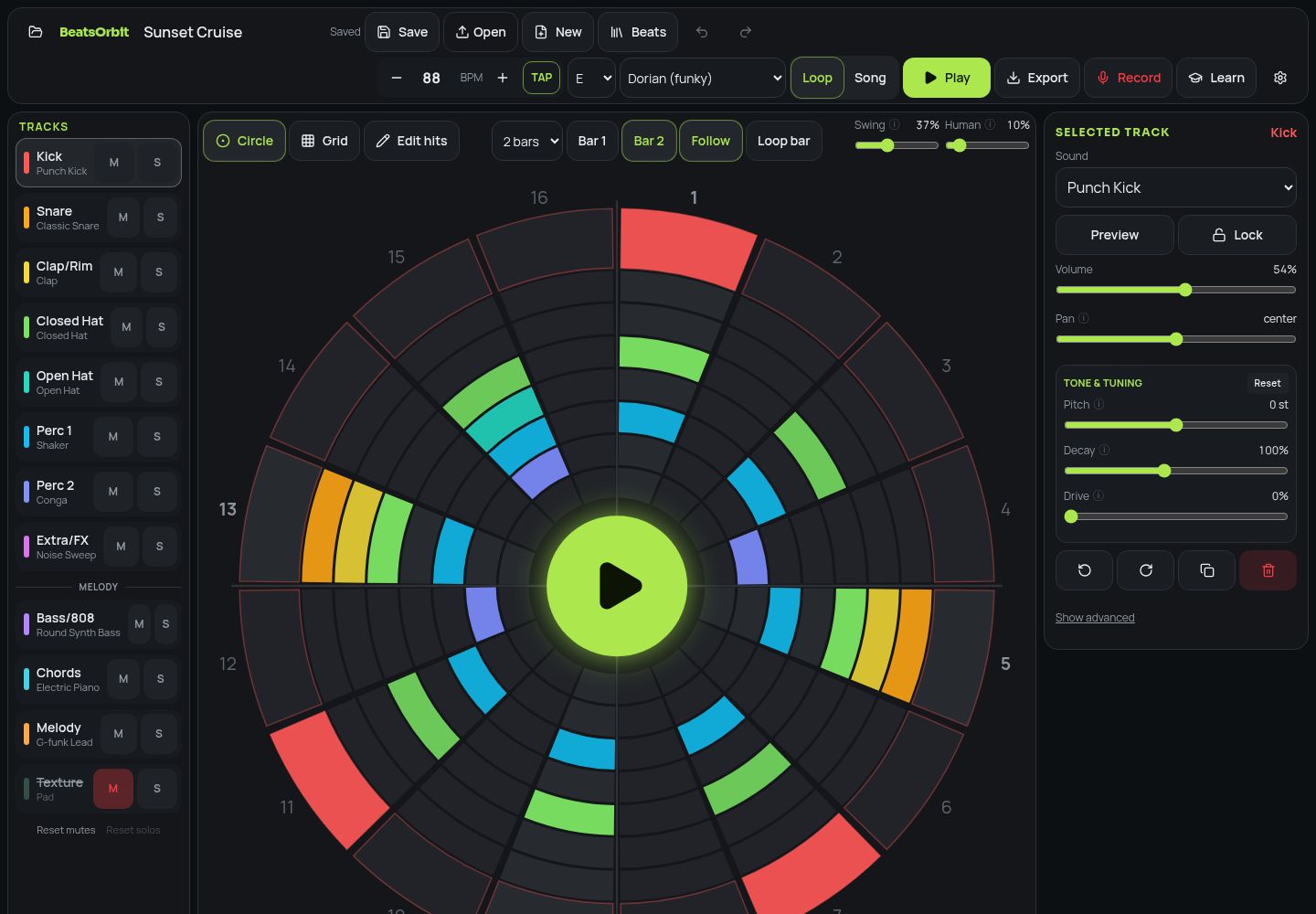
The Studio is split into six areas. Everything you change can be undone.
| Control | What it does |
|---|---|
| Top bar | Project name, Save / Open / New / Beats, undo and redo, tempo, key and scale, Loop / Song, Play, Export, Record, Learn and Settings. |
| Tracks | Every drum and melody track. Tap to select, M to mute, S to solo. Reset mutes / Reset solos sit at the bottom. |
| Sequencer | The circle (or grid) where you place hits. Bar, length, Follow and Loop bar controls sit above it. |
| Selected track | Sound, preview, lock, volume, pan and Tone & Tuning for the track you picked. |
| Patterns | Your beat's versions (A, B, C…). Copy, New, length and delete. |
| Tabs | Mixer, Ideas, Sounds, Notes, Pads, MIDI and Arranger. |
The top bar
Left to right:
| Control | What it does |
|---|---|
| Save / Open / New | Save the beat (also saves a project file), open a project file, or start fresh. |
| Beats | Browse every beat you've made. |
| − BPM + | Tempo. Tap TAP in time with the music to set it by feel. |
| Key / Scale | Changing the key moves all notes. The scale is used to keep new notes in tune. |
| Loop / Song | Loop repeats the current pattern. Song plays your arrangement from start to end. |
| Play | Start or stop. The space bar does the same. |
| Export | Save as WAV, MP3, stems, MIDI or project file. |
| Record | One tap to record your voice over the beat. |
| Learn | Quick tour, playable beat lessons and this manual. |
Circle sequencer
Each ring is one track and each box is a step. The numbers 1–16 around the edge show the steps; 1, 5, 9 and 13 are the beats. A white line sweeps around while it plays and hits light up as they're crossed.
- Tap a box to add or remove a hit. Slide your finger along a ring to paint a rhythm.
- Tap the green center button to play or stop.
- Edit hits lets you set a hit's strength, repeats (rolls), timing offset and chance of playing.
- Swing pushes every second step later for bounce. Human adds small random timing so it feels played.
- Bar 1 / Bar 2 picks which bar you're editing in longer patterns. Follow jumps to the bar that's playing. Loop bar repeats just that bar.
Grid view
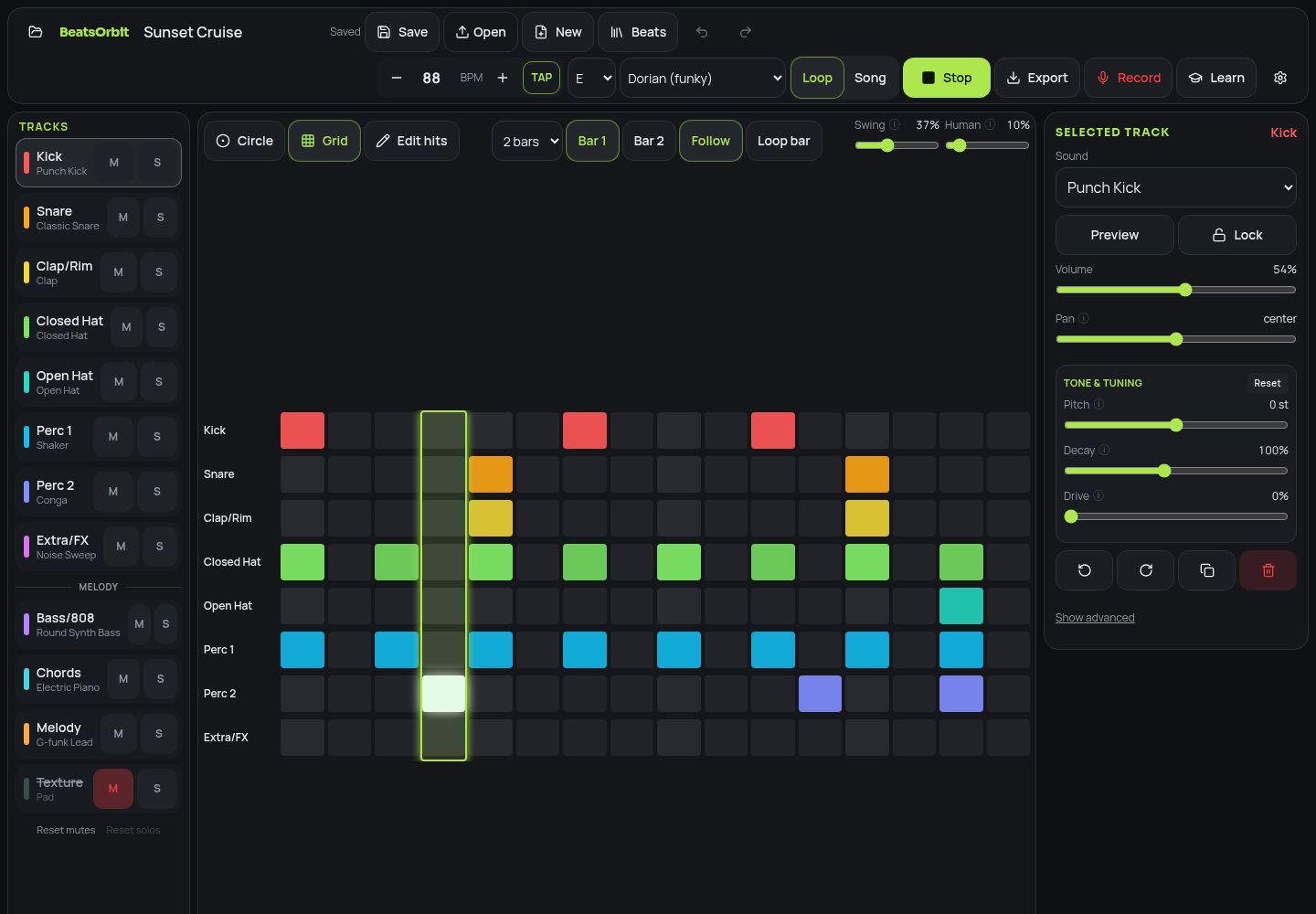
Tap Grid (or press C) for a classic row-per-track view. A box marks the step that's playing and hits flash as it passes.
Tracks & selected track
Drum tracks are listed first, then melody tracks under the Melody divider. Pick a track to edit it on the right.
| Control | What it does |
|---|---|
| Sound | Choose the drum or instrument for this track. |
| Preview | Hear the sound once. |
| Lock | Ideas and pattern tools won't change a locked track. |
| Volume / Pan | Loudness and left-right position. |
| Pitch | Tune the sound up or down in semitones. |
| Decay | How long a drum rings out. |
| Drive | Adds grit and warmth. |
| Glide | On bass, slides between notes like an 808. |
| Buttons | Rotate left/right, duplicate, clear the track. |
Patterns
Patterns are versions of your beat — a verse, a hook, a fill. Each one has a letter badge (A, B, C…) and a name you can change by double-clicking or long-pressing it.
- Tap a pattern while playing and it switches at the end of the loop.
- Copy makes a numbered copy (e.g. Main 2) to change without losing the original.
- Each pattern can be 1, 2, 4 or 8 bars long.
- The small tag (e.g. B · 2/4) shows which pattern and bar is playing.
Mixer & master
Each track gets a strip in its own color: volume, mute/solo, pan, filter, reverb, delay and drive. The Master strip sets the overall volume.
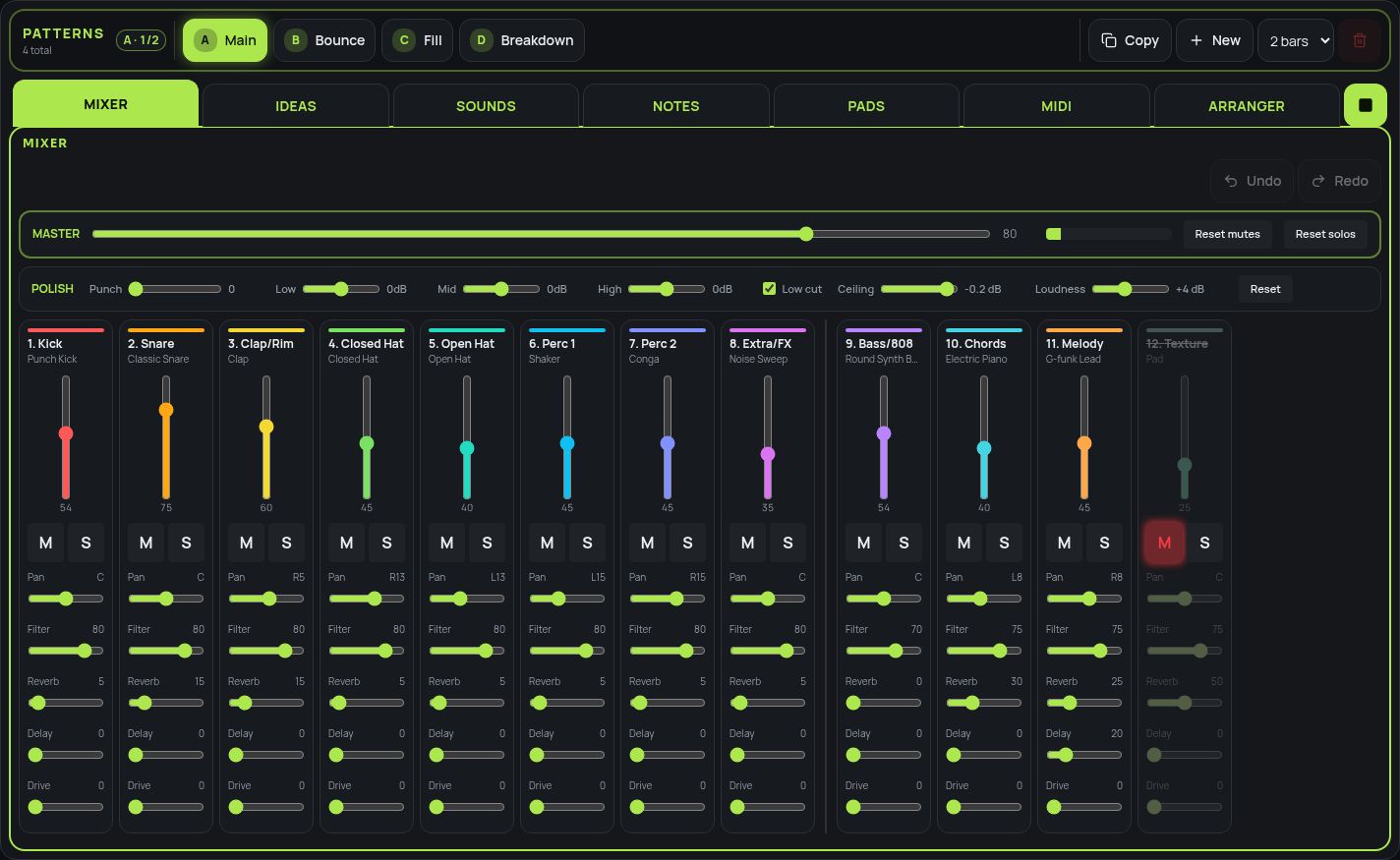
| Control | What it does |
|---|---|
| Punch | Soft clipping on the whole beat for a louder, harder sound. |
| Low / Mid / High | Overall tone, ±6 dB. |
| Low cut | Removes rumble under 30 Hz. On by default. |
| Ceiling | The highest level an exported song can reach (−3 to 0 dB). |
| Loudness | How hard exports are pushed into the limiter (0–10 dB). |
Ideas
One-tap tools that write parts for you. Press again to try a different one each time.
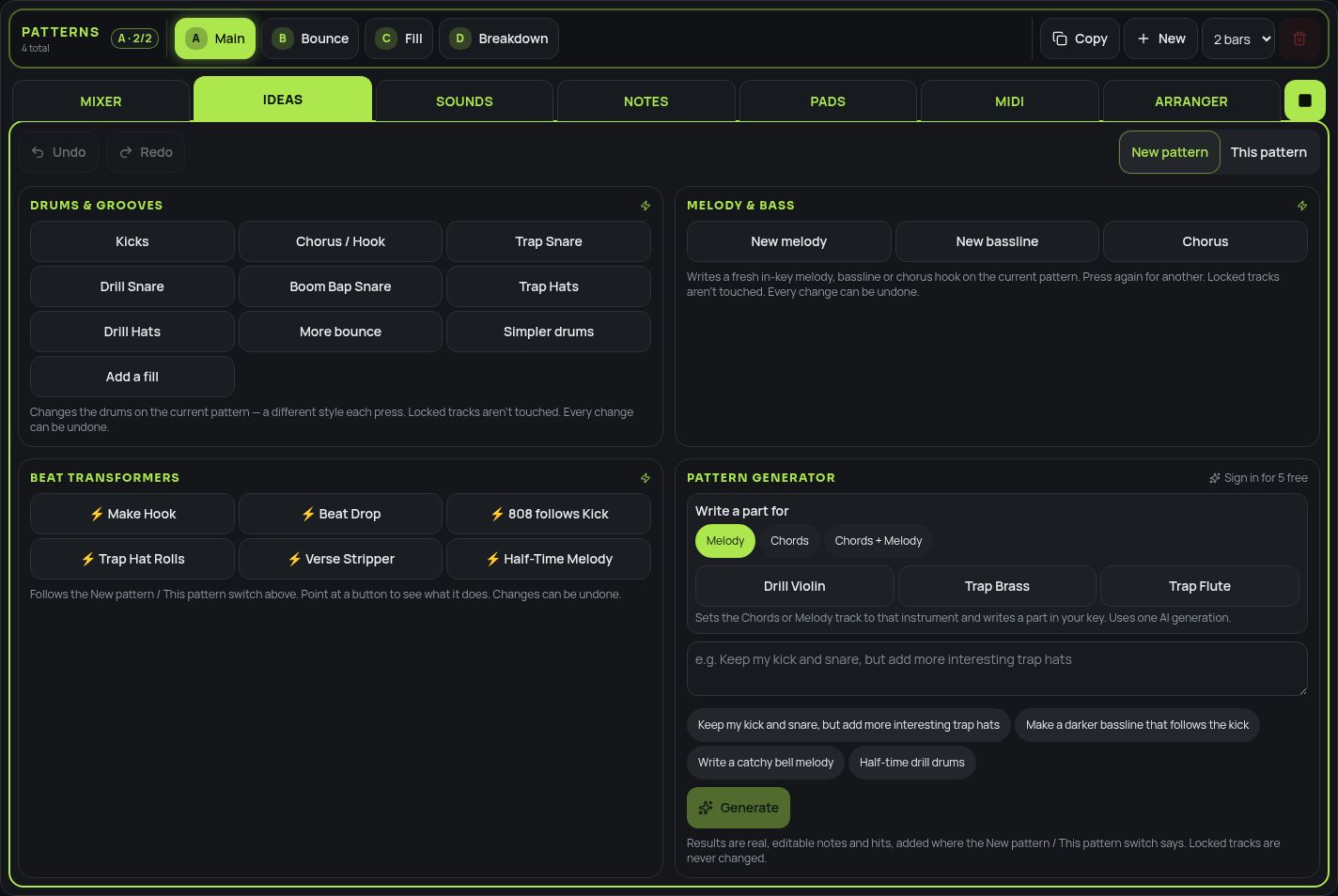
| Control | What it does |
|---|---|
| Drums & Grooves | Random hip-hop kick, snare and hat patterns. Kicks follow your bassline. |
| Melody & Bass | Random melody, bassline and chorus parts in your key. |
| Beat Transformers | Change the whole beat: hook, halftime, fills and more. |
| AI pattern | Describe a beat and get an editable pattern (5 free, unlimited with Pro). |
| New / This pattern | New pattern (default) keeps your original. This pattern changes it in place. |
| Undo / Redo | Flip between ideas and what you had before. |
Sounds & Sound Forge
Pick kits and instruments for every track. Sound changes can be made for one pattern only. Sound Forge designs a new drum sound from a description and saves it as an editable recipe. The Sampler lets you load your own audio and chop it.
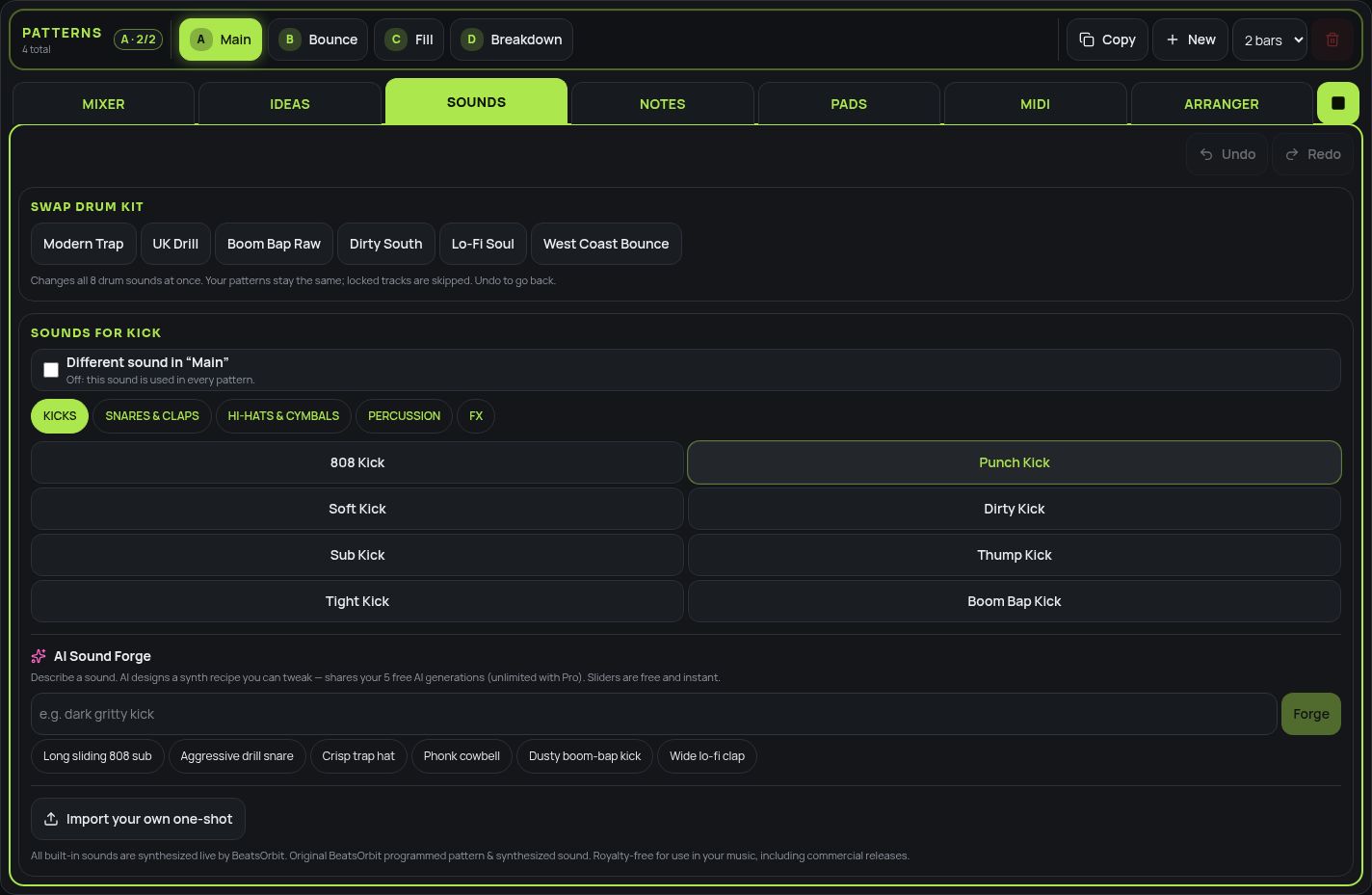
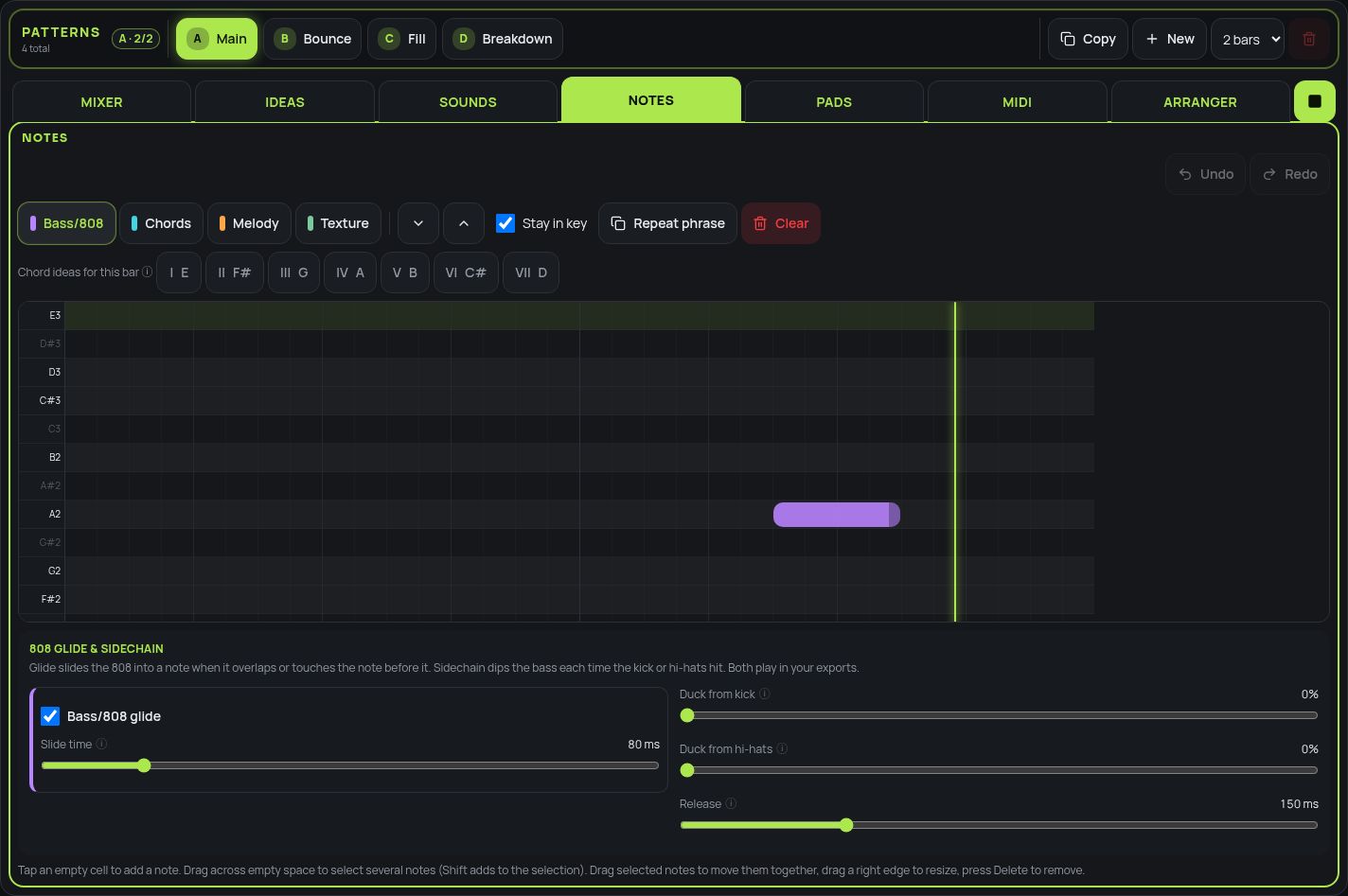
Notes (piano roll)
Write bass, chords and melodies. Pick a melody track, then tap to add notes. Tapping a note plays it. Notes snap to your key and scale.
Pads & keyboard
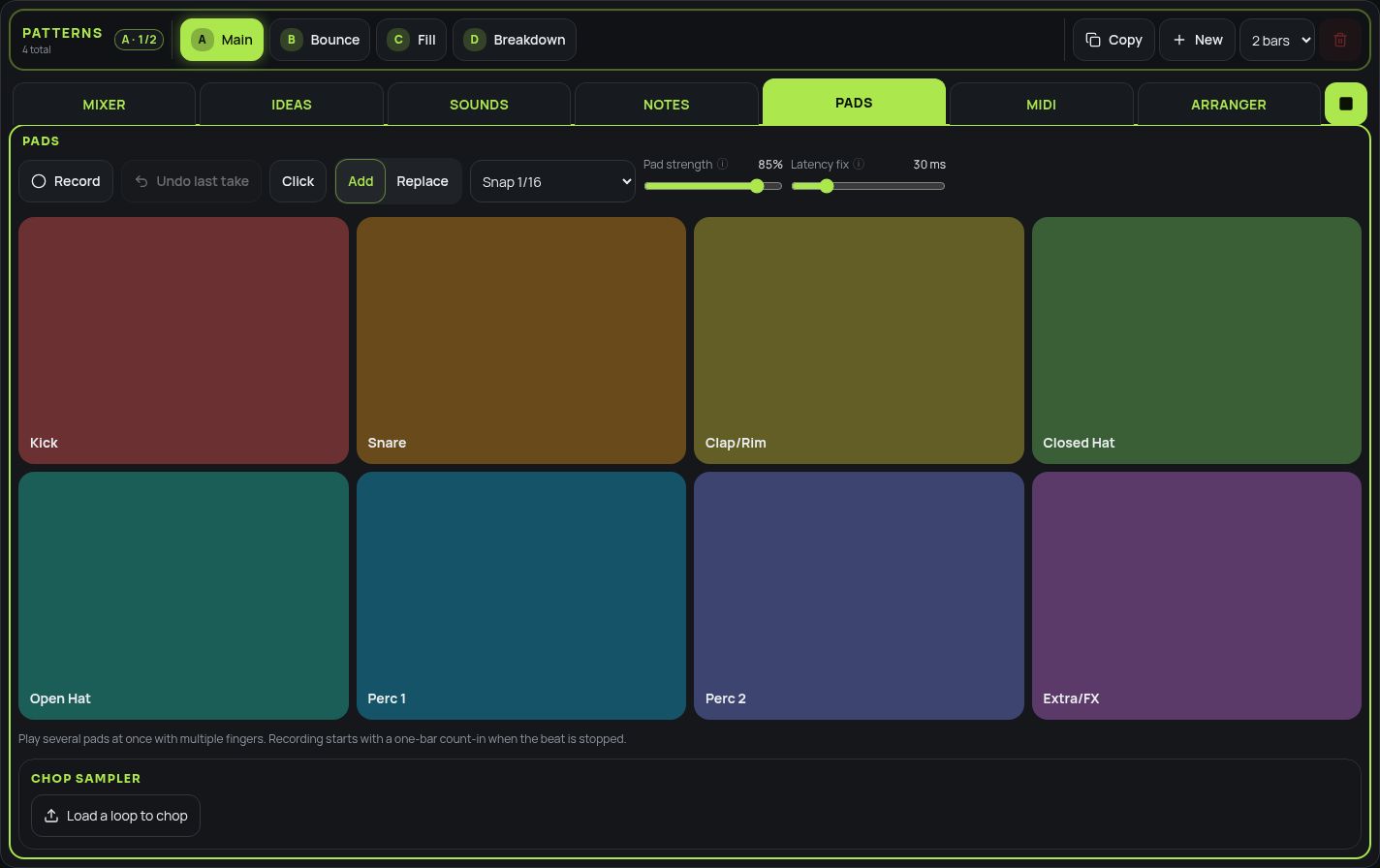
Play drums live on big pads, or play notes on the on-screen keyboard. Great for finger drumming on a tablet.
MIDI controllers
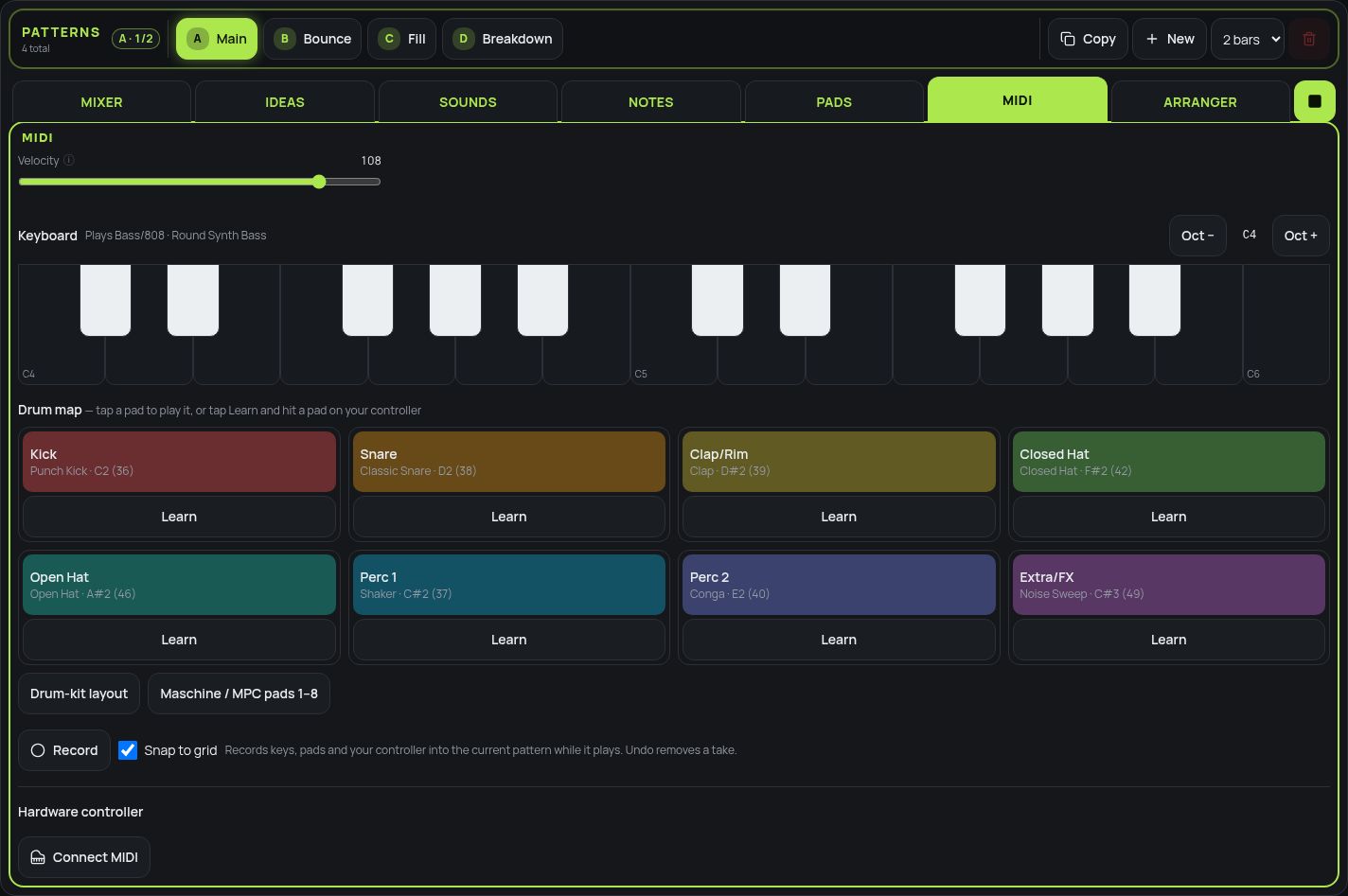
Plug in a MIDI keyboard or pad controller (Chrome or Edge on computers, Chrome on Android; iPad Safari doesn't support MIDI). Tap Learn next to a drum, then hit a pad to link it. Mixer controls can be linked to knobs and faders the same way.
Arranger & vocals
Build the full song from sections (Intro, Verse, Hook…) that each play a pattern for a number of bars. Switch the top bar to Song to hear it all. Scratch Vocal sits at the top: record or import a vocal, set its level and nudge its timing.
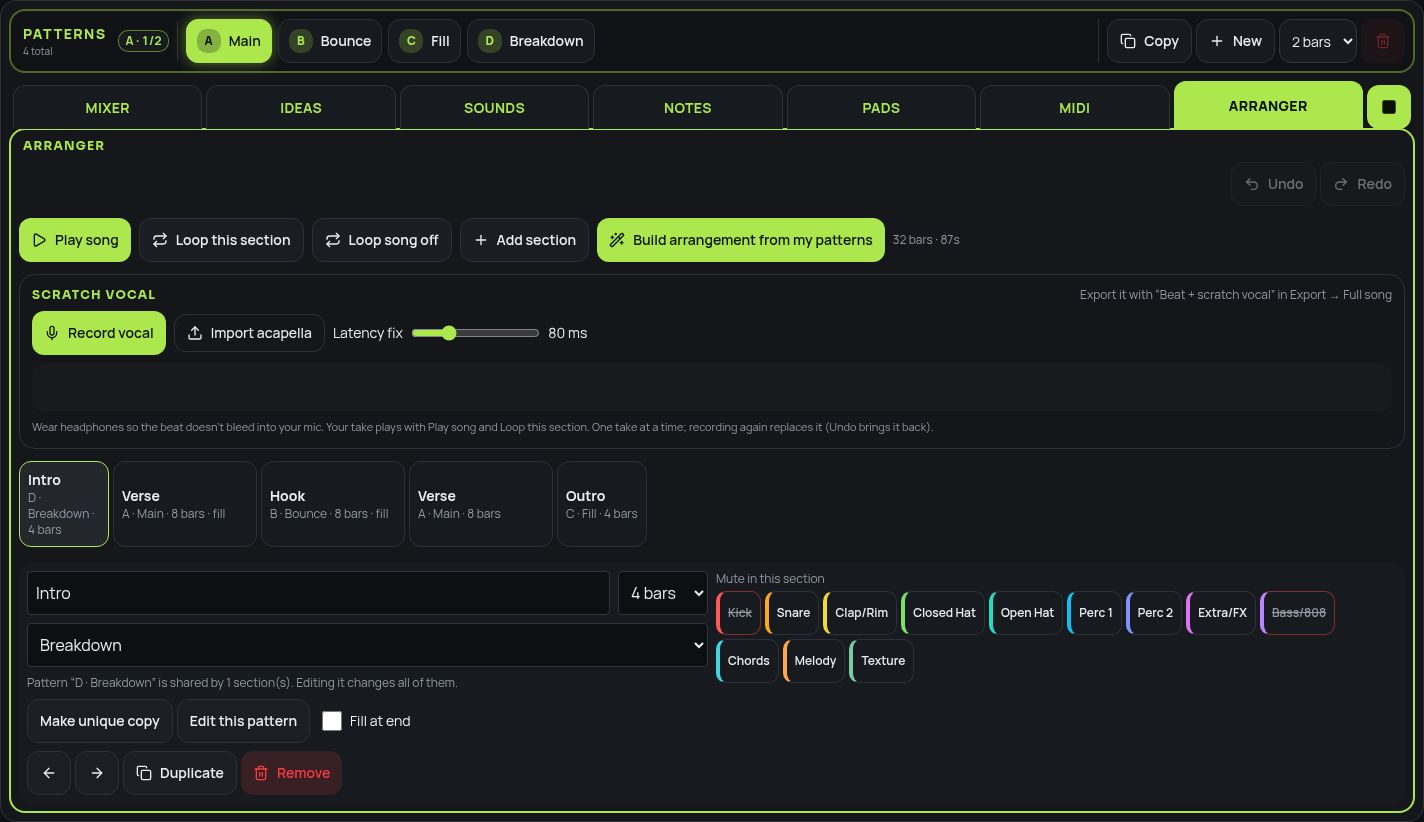
- A new recording replaces the old take — use Undo to get it back.
- Loop Song repeats the whole arrangement.
Export
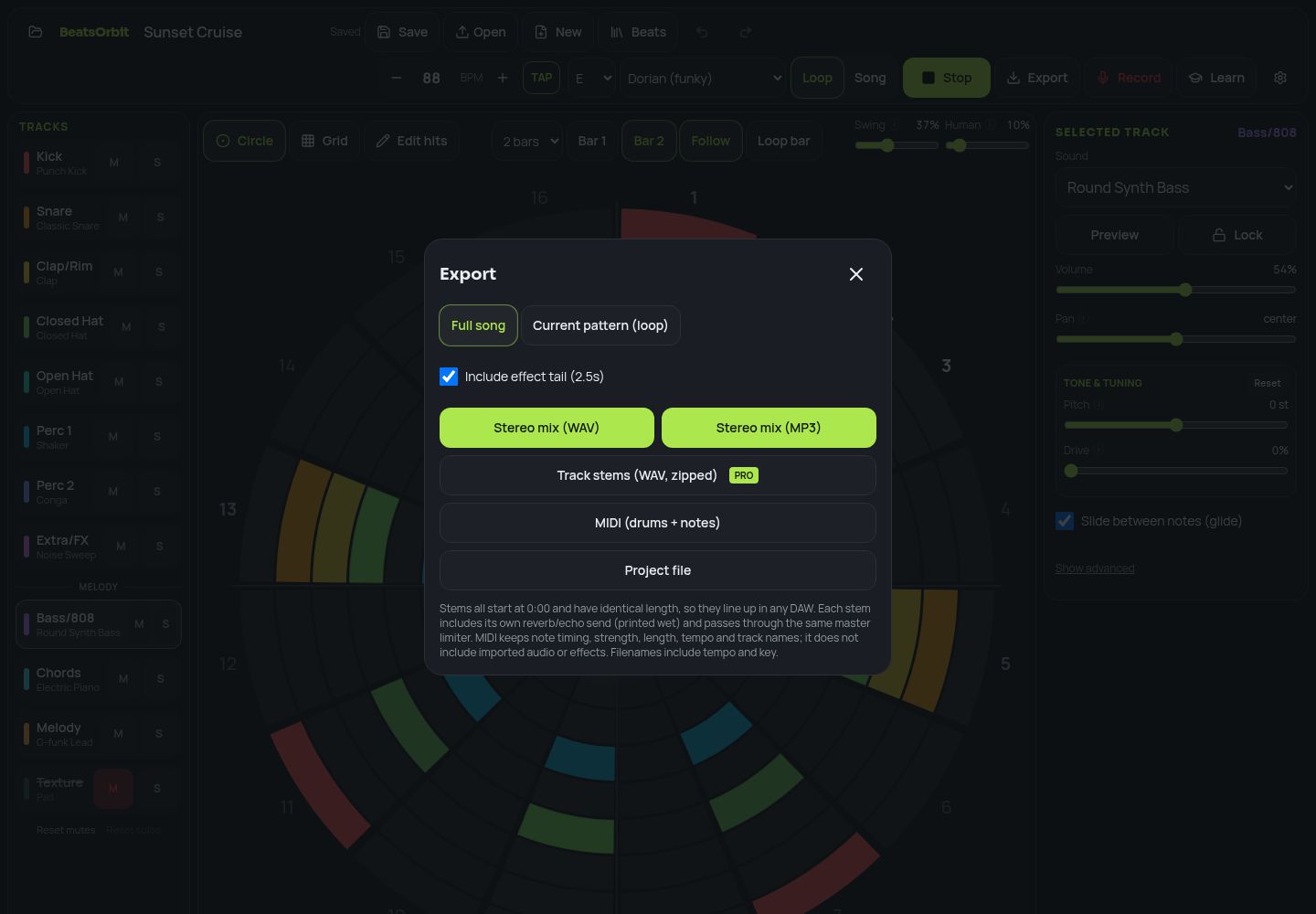
Full song is selected by default. Full mixes go through the master limiter so they come out loud without clipping.
| Control | What it does |
|---|---|
| Stereo mix (WAV / MP3) | The finished beat. MP3 is 192 kbps. |
| Track stems | One WAV per track, lined up from 0:00 (Pro). |
| MIDI | Drums and notes for another music program. |
| Project file | A backup you can open later with Open. |
Keyboard shortcuts
On a computer keyboard:
| Control | What it does |
|---|---|
| Space | Play / stop |
| Ctrl/⌘ Z, Ctrl/⌘ Shift Z | Undo / redo |
| [ and ] | Undo / redo |
| C | Switch circle / grid |
| M, I, S, N, P, D, A | Mixer, Ideas, Sounds, Notes, Pads, MIDI, Arranger |
| 1–8 | Select drum tracks |
| 9, 0, −, = | Select melody tracks |